
Opening files
Subtitld always works on a video. Open a video on its own to start new subtitles, open a subtitle file with its video to carry on, or reopen a recent project in one double-click.
The start screen
When Subtitld starts without a file, it shows the start screen. Everything you can open is on its bottom line.
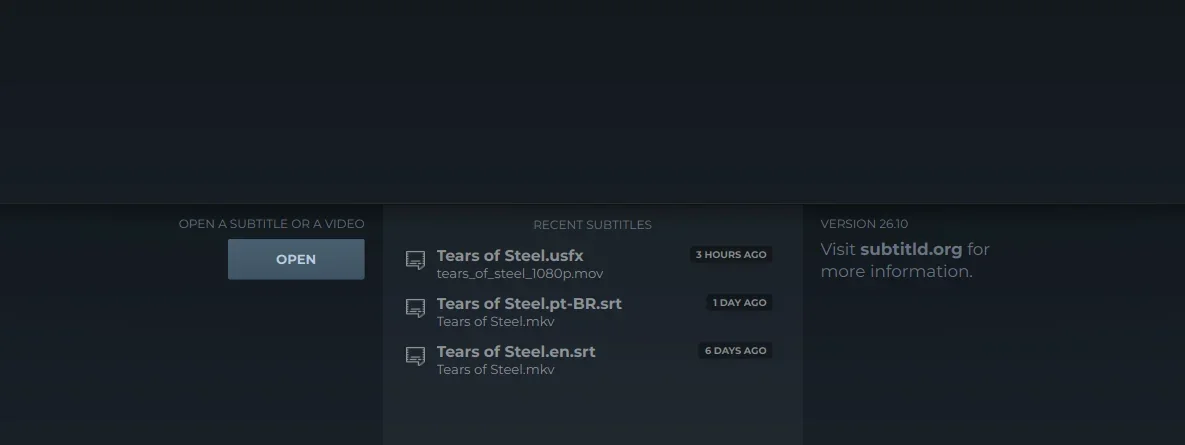
- Open. Choose a video, a subtitle file, or both.
- Recent subtitles. The files you worked on last, newest first.
Open a video and its subtitles
Press Open. The file window lists every video and subtitle file Subtitld reads; pick one, or select both a subtitle file and its video together (hold Ctrl or Shift as you click).
What happens next depends on what you picked:
| You pick | Subtitld |
|---|---|
| A video and a subtitle file | Opens both, the subtitles over the video and on the timeline. |
| A subtitle file only | Asks for its video in a second window, then opens both. |
A Subtitld project (.usfx) |
Opens it with the video it remembers, without asking. |
| A video only | Opens it with no subtitles, ready to write, transcribe or import them. |
A video is always needed. Timing is done against the picture and the waveform, so Subtitld doesn't open a subtitle file on its own. If you close the window that asks for the video, nothing opens.
Subtitld reads MP4, MKV, MOV, MPG, TS (and M2TS, MTS), WebM, OGV and M4V videos. For subtitles it reads SRT, WebVTT, ASS and SSA, TTML and DFXP, SAMI, SCC, EBU STL, MacCaption, SubViewer, MicroDVD, USF, JSON and Bilibili's BCC, besides its own projects. The formats guide has a page on each.
Subtitles drawn as pictures (DVD's VobSub .sub with its .idx) hold no text Subtitld can edit. It says so instead of opening them; an OCR tool can turn them into text first.
Start from a video alone
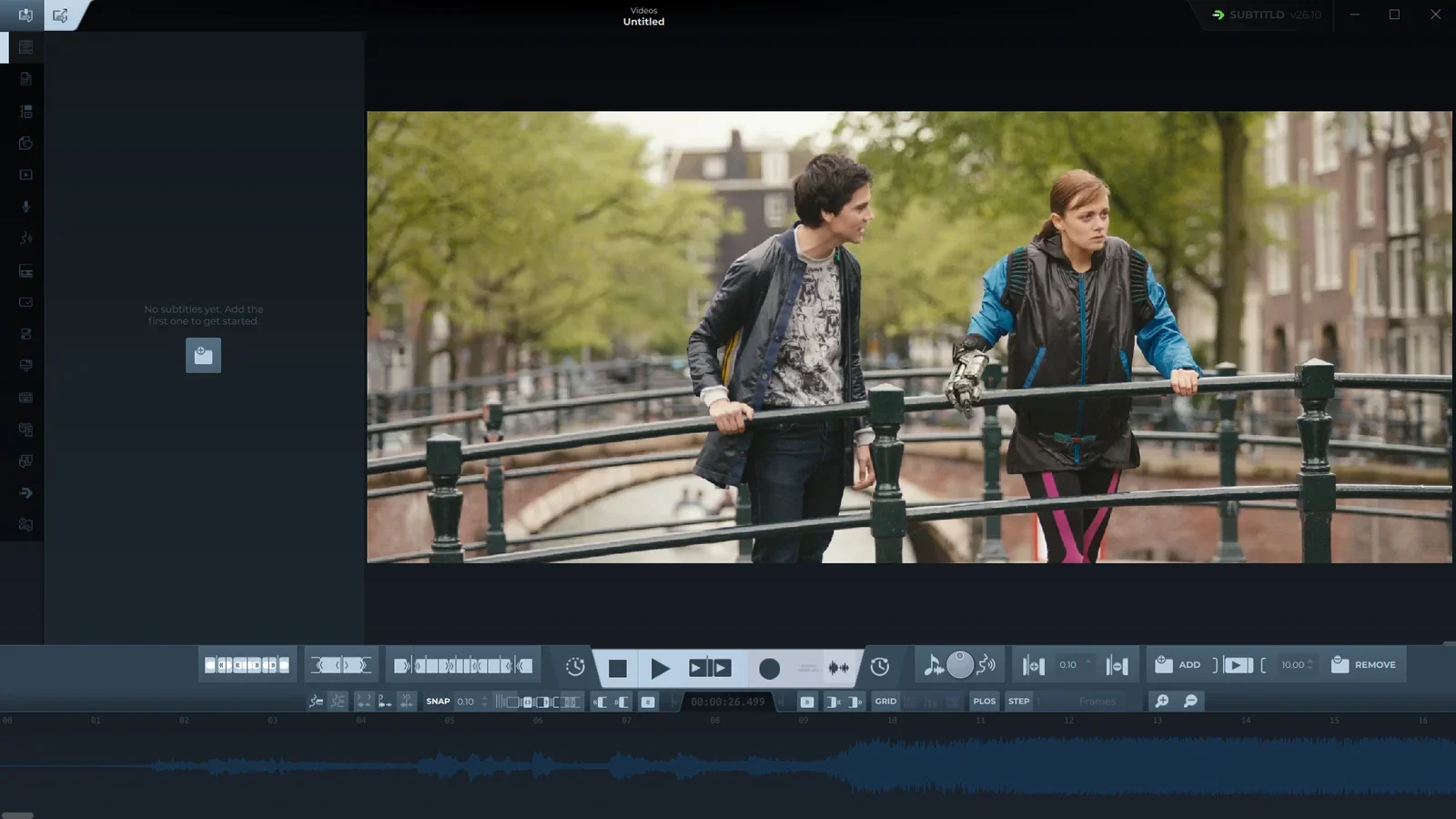
Open just the video and Subtitld shows it with Untitled at the top, an empty list (No subtitles yet) and only the waveform on the timeline. From there you can write the subtitles yourself on the waveform, transcribe the speech with a speech-to-text add-on, or read in the subtitles the video already carries (below).
When you save, Subtitld asks where, and suggests a project (.usfx) named after the video, in its folder. To deliver another format, use Export.
Recent subtitles
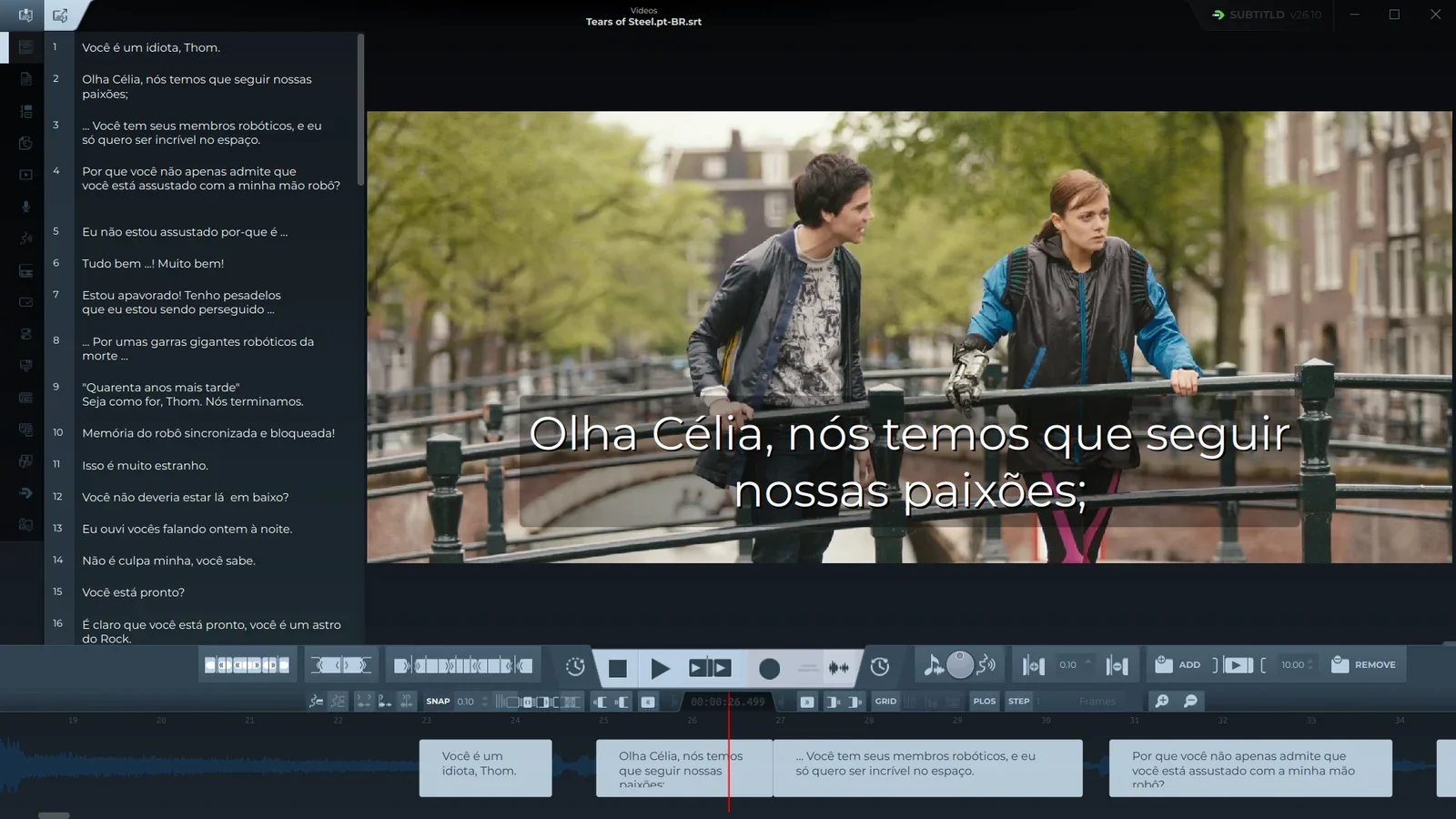
The start screen lists the subtitle files you opened before, with the video each one goes with and when you last had it open. Double-click one to open both again. Subtitld goes back to where the playhead was when you last saved or closed, and scrolls the timeline there.
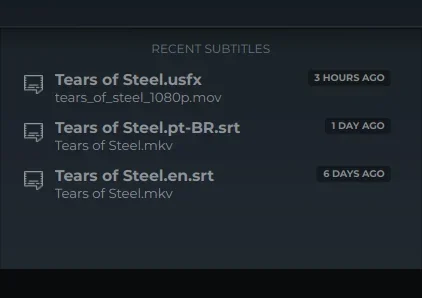
- An entry stays hidden while its subtitle file or its video can't be found, for example when a drive isn't connected. It comes back when they are.
- A video opened without subtitles doesn't appear until you save its subtitles.
- If a project in the list turns out to be damaged, Subtitld says so and takes it off the list.
Subtitles inside the video
MKV, MP4 and WebM files can carry subtitle tracks of their own. To edit one, open the video, then go to the Import tab and choose Subtitles in the video as the engine. Pick the track from the list (each shows its number, language, format, and whether it is the default) and press Read subtitles.
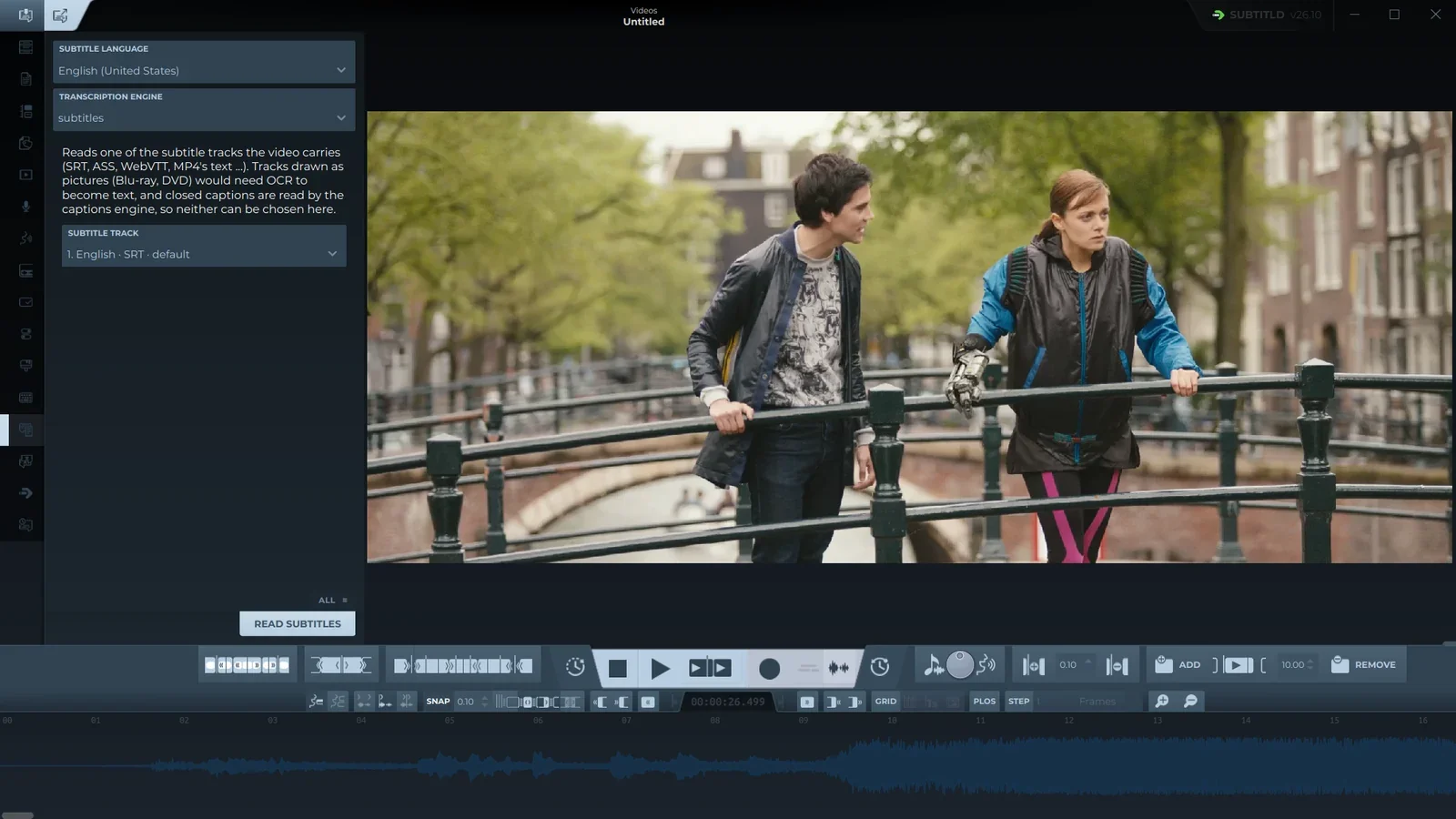
- Engine. Subtitles in the video.
- Subtitle track. The tracks the video carries; Subtitld preselects the default one.
- Read subtitles. Brings the track onto the timeline.
The track's subtitles land on the timeline as if you had opened them from a file, and Subtitld takes the track's language as the subtitles' language.
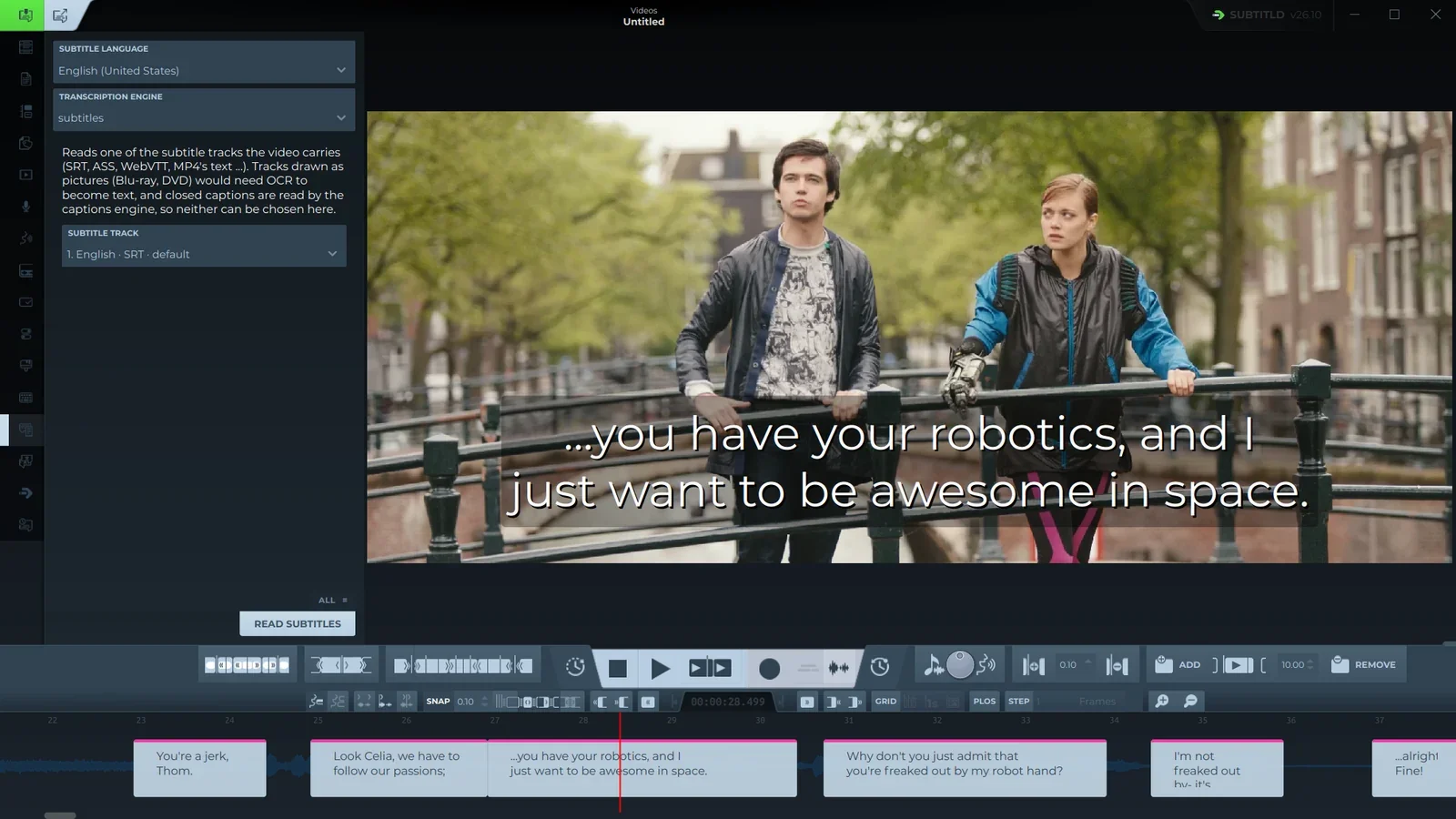
Tracks drawn as pictures (Blu-ray's PGS, DVD's VobSub) are listed but can't be chosen, as they would need OCR. Closed captions (CEA-608 and CEA-708, as in TV recordings) have an engine of their own in the same list.
From the command line
Give Subtitld the files when you start it, in any order:
subtitld "Tears of Steel.en.srt" "Tears of Steel.mkv"It opens them straight away, skipping the start screen.