
Get a speech engine
Subtitld doesn't ship a speech engine, so it stays small. You add the one you want once, and it stays installed.
- Open the global settings from the left rail and pick the Add-ons tab.
- Find whisper.cpp under speech to text and press Install.
- Pick a model. Smaller models are faster; larger ones make fewer mistakes.
After this download nothing leaves your computer. Prefer something else? Vosk also runs offline, and AssemblyAI runs in the cloud.
Open the video
On the start screen, press Open under Open a subtitle or a video and choose your file. MP4, MKV, MOV, WebM, MPEG, Ogg and M4V all work.
Subtitld draws the waveform as the video loads. If it is 4K or 8K, it also makes a lighter proxy to edit with.
Transcribe
Open the transcription panel from the left rail and set it up like this:
- Subtitle language: the language people speak in the video.
- Transcription engine: whisper.cpp.
- Scope: All for the whole video. You can also do a range, or only the selected subtitles.
- Press Start and wait for the engine to work through the audio.
Check: the list fills with numbered subtitles, and blocks appear on the timeline over the speech.
Fix the text
No engine is perfect with names. Play the video with Space and read along. When a line is wrong, click it in the list and type in the box below it; the video shows the change at once.
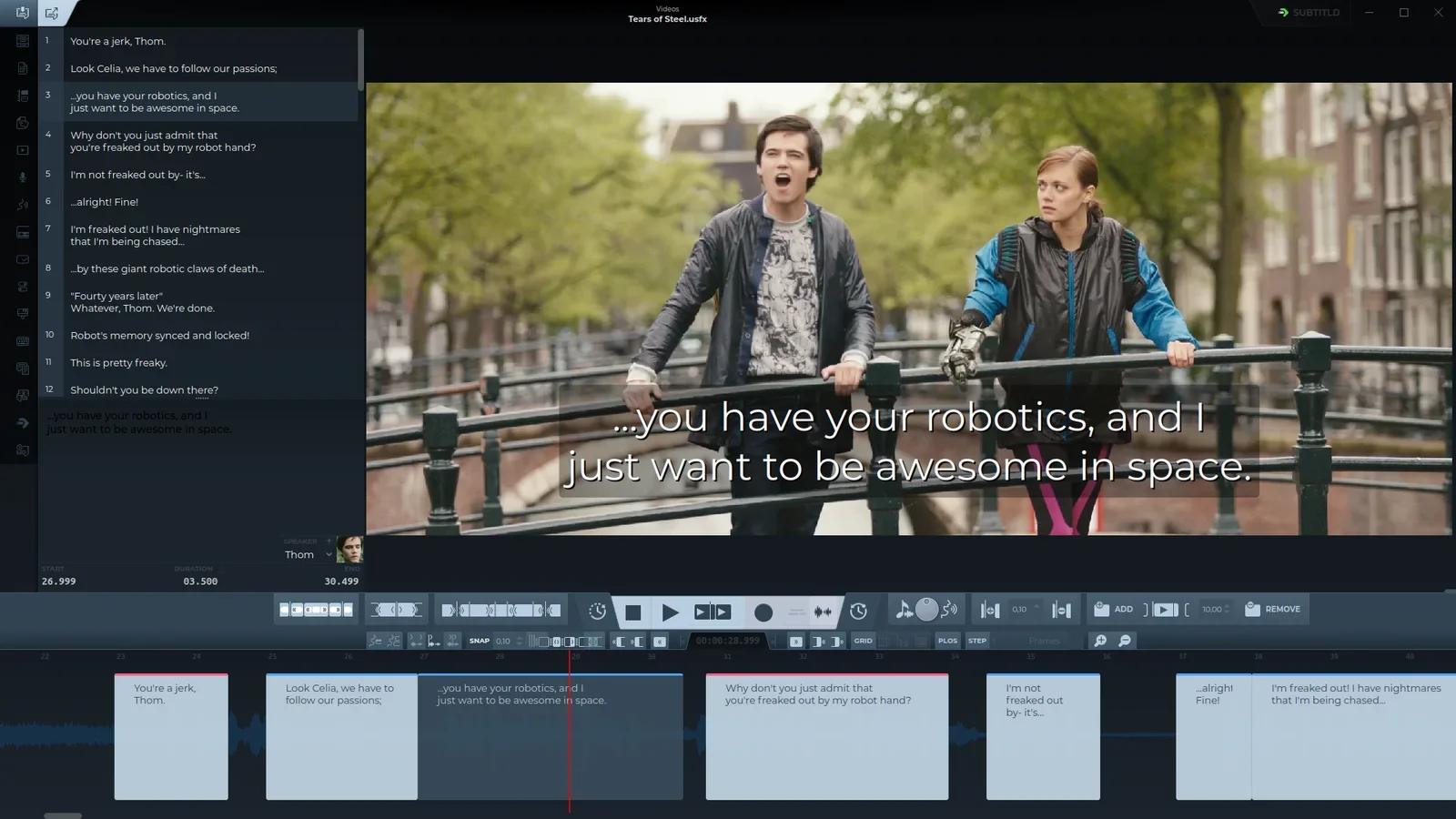
Many small fixes? Switch to the plain-text view and edit everything as one document, or use Find & Replace with Ctrl+H.
Tighten the timing
A subtitle should appear as the person starts speaking and leave as they stop. On the timeline, drag an edge onto the start or end of the speech in the waveform.

For fine work, use the keypad: 5 selects the subtitle under the playhead, 7 and 1 nudge its start, 9 and 3 its end. All of it in Timing on the waveform.
Check readability
Open the quality check panel and turn on Quality check. Subtitles that break a limit are marked, so you can split them, shorten them or give them more time.
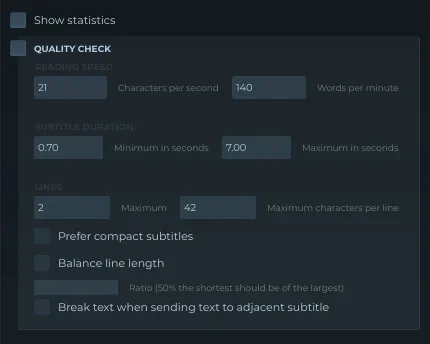
- Chars / second
- 21
- Words / minute
- 140
- Duration
- 0.7–7 s
- Lines × chars
- 2 × 42
These defaults are common broadcast limits. A client or platform may ask for different ones; change them here.
Save as SRT
Press the export button in the top bar and pick SubRip (.srt). Give it the video's name, so players load it on their own: holiday.mp4 and holiday.srt side by side.
3
00:00:27,000 --> 00:00:30,500
...you have your robotics, and I
just want to be awesome in space.
One subtitle of your file. How SRT works.
Want to come back to it later with the speakers and waveform intact? Also save the project as .usfx.